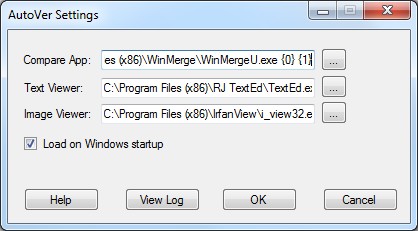
Application Settings
By clicking on the 3rd icon (cogs) to the right of the main screen, you can edit the application's settings.
The compare application is the application you wish to use in the Backup Explorer to compare files. The default application in an open source application called WinMerge. You must install this yourself - see the WinMerge web site for more information. You may customise this to which ever application you choose. You also need to specify where the 2 file names will be written into the command line. This is written in the format of {0} {1} where {0} is where the first file will be inserted (in replace of this place holder) and {1} then second file. The default text shown in the textbox will be something like: C:\Program Files\WinMerge\WinMerge.exe {0} {1}
When opening or viewing files in the Backup Explorer, you can change the default alternate application. Image files will default to the application specified in the Image Viewer box, while all other files will default to the Text Viewer application specified. For Image viewing I recommend IrfanView and for text viewing I recommend PSPad, Notepad++ or RJ Edit. These applications are freeware.
If the Load on Windows startup checkbox is ticked, then AutoVer will load when Windows starts and minimise itself to the system tray, (providing it has a folder to watch).
The View Log will open the internal log file. To increase the logging level to be more verbose (not recommended), in AutoVer.exe.config file, change the LogLevel setting from Info to Debug.
All settings are saved to the AutoVer.exe.config file for portability. The registry also contains a copy. Load on Windows Startup is not a portable option (registry only).
Copyright © 2007-2009, Hunter Beanland
Created with the Freeware Edition of HelpNDoc: Easily create HTML Help documents